
Blooket Host: How Teachers Can Host a Game Step by Step
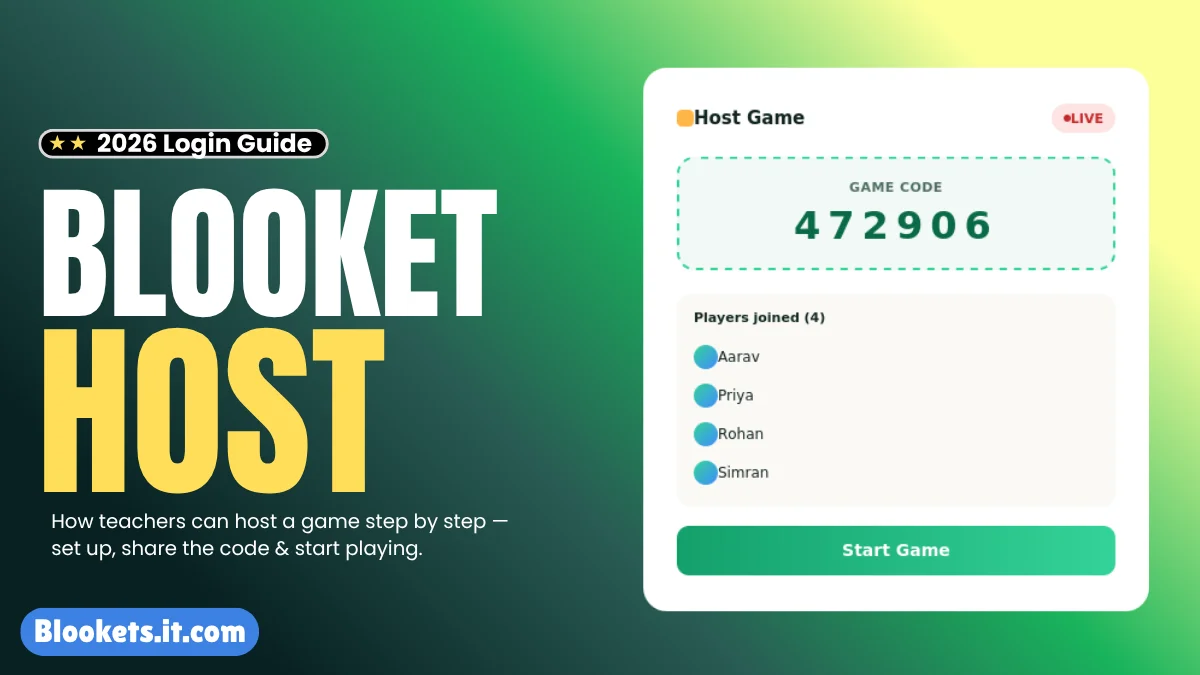
If you are searching for Blooket Host, you are probably looking for the steps teachers use to set up a live Blooket game, choose a question set, select a game mode, configure the session, and give students a way to join. Hosting is handled through Blooket’s own platform rather than through third-party guide websites.
The basic process is straightforward: choose a question set, select Host, pick an available live game mode, adjust the settings, and start the session. Blooket then provides students with a Game ID, QR code, or join link that can be shared with the class. Blooket’s current teacher documentation confirms this general hosting workflow.
This website, Blookets.it.com, is an independent fan-made informational and educational guide. It is not the official Blooket website and does not provide Blooket hosting, accounts, games, game codes, or account support. When you need to sign in or actually host a game, use the official Blooket platform.
Quick Answer: To host a Blooket game, open the official Blooket website, sign in with an eligible account, find or create a question set, open the set, and select Host. Choose a live game mode, configure the available settings, select Host Now, and share the resulting Game ID, QR code, or join link with students.
Official Blooket website: Blooket.com
Official student game joining page: play.blooket.com
Official account dashboard: Blooket Dashboard
What Does Blooket Host Mean?
Blooket Host refers to the teacher or account holder who creates and controls a live Blooket game. The host selects the question set and game mode, configures the available options, opens the session for students, and starts the game.
Blooket describes question sets as the building blocks of its games. A host can use a set from the platform’s collection or use a set they have created themselves. The hosting process then connects that question content with a selected game mode.
The host is different from a student participant. Students normally join a session created by the host using a Game ID, QR code, or join link. According to Blooket’s current student guidance, students can join a hosted game without creating an account when they use the Game ID, QR code, or link provided by the host.
Blooket Host at a Glance
| Stage | What Happens | Main User |
|---|---|---|
| Choose a set | Select an existing or created question set | Teacher/host |
| Select Host | Open the live-game setup | Teacher/host |
| Choose a mode | Pick an available live game mode | Teacher/host |
| Configure settings | Adjust available game options | Teacher/host |
| Host Now | Create the live session | Teacher/host |
| Share access | Give students a Game ID, QR code, or link | Teacher/host |
| Start | Begin the live game when ready | Teacher/host |
| Participate | Students answer questions and play | Students |
The exact options available during setup can vary by game mode and account type, so the host should read the settings shown on the screen before starting the session. Blooket also provides descriptions of player limits and suggested player counts for individual game modes.
How to Host a Blooket Game
The following process reflects Blooket’s current official hosting documentation.
Choose a Blooket Question Set
First, open Blooket and find a question set that you want to use. You can browse sets through the platform or use a set you have created.
Blooket’s teacher quick-start documentation says question sets can be found through areas such as Discover and My Sets, while teachers can also create their own sets.
If you are not familiar with game codes, our Blooket Code guide explains how codes are used when students enter a live session.
Open the Set and Select Host
After opening the question set, select the Host option.
This is the point where the process changes from simply viewing question content to creating an actual live game. Blooket then presents the game modes that are available for that set and account.
Choose a Game Mode
Select the game mode you want students to play.
Blooket currently offers a broad selection of game modes, with availability divided between live games, solo or homework modes, and modes that support more than one type of play. Its current game-mode documentation lists live-only modes such as Battle Royale, Blook Rush, Classic, Crypto Hack, Deceptive Dinos, Fishing Frenzy, Gold Quest and Racing, while other modes can also be played solo or assigned as homework. Some modes are Plus-only or seasonal.
Because game availability can change, it is better to rely on the game modes displayed in your own Host menu rather than an old list from another website.
Configure the Host Settings
After selecting a game mode, Blooket provides host settings that can vary depending on the selected mode.
Depending on the game, settings may include options related to the game end condition, answer feedback, question ordering, late joining, random names, sounds, student accounts, or other game-specific controls. For example, Blooket’s documentation for newer modes shows several of these options directly in the host settings.
Take a moment to review these settings before launching the game. A classroom game can work very differently depending on whether students can join late, whether names are randomised, and how the game determines when it ends.
Select Host Now
When the settings are ready, select Host Now.
Blooket creates the live game and gives the host information that can be shared with students. Official documentation states that this can include a Game ID, QR code, and join link.
Share the Game With Students
Students can normally join using one of the methods provided by the host:
- Enter the Game ID on the official Blooket joining page.
- Scan the displayed QR code.
- Open the shared join link.
The official joining page is play.blooket.com.
Students do not necessarily need Blooket accounts to participate in a hosted game. Blooket’s current help documentation says students can join with a Game ID, QR code, or link without logging in.
For a separate explanation of the student side of the process, see our Blooket Join guide.
Start the Game
Once the expected students have joined, the host can start the game.
Before pressing Start, check the participant list and make sure students are using appropriate names for the classroom environment. Once the game begins, students answer the questions and interact with the selected game mode.
Choosing a Blooket Game Mode
The game mode is one of the most important decisions when hosting because it determines how students interact with the question set.
| Mode Type | How It Works | Useful When |
|---|---|---|
| Competitive modes | Students compete through game mechanics while answering questions | You want a more competitive session |
| Strategy-focused modes | Correct answers contribute to decisions, resources, or progression | You want review combined with strategy |
| Classic-style play | The game focuses more directly on answering questions | You want a straightforward review activity |
| Solo modes | A student plays independently | Independent practice is required |
| Homework modes | Students complete assigned activities outside a live classroom session | Students need asynchronous work |
Blooket’s current game-mode guide shows that not every mode belongs in the live-host category. Some are specifically available for solo play or homework, while others can be used live and in additional formats.
For this reason, a host should choose the mode from the current Host interface rather than assuming that every Blooket game can be launched as a live classroom session.
How Many Students Can Join a Blooket Host Game?
Player capacity depends on the game mode and subscription level.
Blooket’s current documentation says Starter accounts can host games with up to 60 players, while Blooket Plus can support up to 300 players for supported games. The platform also notes that some games, including Racing and certain team modes, can have different limits.
The safest approach is to check the player information shown for the specific game mode you are about to host. Blooket provides player-limit and suggested-player information within game-mode descriptions.
Free Blooket Hosting vs Blooket Plus
Blooket provides free functionality for hosting, while Plus adds additional capabilities.
| Area | Starter / Free | Blooket Plus |
|---|---|---|
| Create question sets | Available | Available |
| Discover question sets | Available | Available |
| Live hosting | Available | Available |
| Maximum live-game size | Up to 60 for supported games | Up to 300 for supported games |
| Plus-only game modes | Not included | Available |
| Enhanced reports | More limited | Additional reporting features |
| Folders | Not included | Available |
| Question Bank | Not included | Available |
| Audio questions | Not included | Available |
Blooket’s current Plus documentation lists larger live games, additional game modes, enhanced reports, folders, a Question Bank, audio questions and other features among Plus benefits.
Features and limits can change, so treat the table as a general guide rather than a permanent specification.
Blooket Host Settings Worth Checking
Before starting a session, review the settings shown for your selected game.
Allow Late Joining
Some games allow the host to let students join after the game has already started. This can be useful when a student has a temporary connection problem or joins the class late. Blooket lists late joining as a host setting for supported games.
Random Names
Blooket can provide randomly generated names when that option is enabled. If it is disabled, students can enter their own names. Blooket notes that using appropriate student names can make after-game reports more useful.
Student Accounts
Hosts may have an option concerning student accounts. Blooket states that students can participate in hosted games without an account, while an account can provide additional features such as tracking stats and unlocking Blooks.
Banned Blooks
Some newer live game modes allow hosts to restrict particular Blooks. Blooket’s documentation explains that hosts can disable selected Blooks so they are not available as choices for students in supported games.
Not every setting appears in every game, so the available options should always be checked on the actual Host Settings screen.
Blooket Host and Game Codes
A Game ID is the information students use to enter a live session.
The host does not normally need to create a random code manually. Blooket generates the game access information when the host creates the live game. Students then use the provided Game ID, QR code, or link to access that session.
If you want a deeper explanation of temporary game access, visit our Blooket Code guide.
Remember that a game code is not the same thing as a password. There is no reason for a student to give a teacher or third-party website their Blooket password simply to join a live game.
Blooket Host vs Student Joining
Hosting and joining are two different sides of the same live activity.
| Task | Host | Student |
|---|---|---|
| Select question set | Yes | No |
| Select game mode | Yes | No |
| Configure host settings | Yes | No |
| Create Game ID | Yes | No |
| Share QR code/link | Yes | No |
| Enter Game ID | No | Yes |
| Answer questions | Yes, where applicable | Yes |
| Start the classroom game | Yes | No |
The host controls the session, while students use the access information supplied by the host. This separation is why students can often participate without creating accounts.
For the student-side process, see our complete Blooket Play guide.
What If You Cannot Host a Blooket Game?
A failed hosting attempt does not necessarily mean the question set or account is the problem. Browser extensions, network restrictions, or blocked services can interfere with Blooket functionality.
Blooket’s own troubleshooting documentation specifically notes that browser extensions such as ad blockers can interfere with parts of the service. It also says that network or firewall restrictions involving required backend services can affect the ability to join or host games.
| Problem | Possible Reason | What to Try |
|---|---|---|
| Host option is unavailable | The selected activity may not support live hosting | Choose a live-compatible game mode or set |
| Game will not start | Browser or connection issue | Refresh the page and check the connection |
| Students cannot join | Wrong or expired session information | Confirm the current Game ID or link |
| QR code does not work | Camera/browser issue | Use the Game ID instead |
| Hosting page does not load | Extension, firewall, or network restriction | Check browser extensions and network access |
| Students are unable to enter | Classroom network restrictions | Ask the network administrator to check access |
| Some settings are missing | Settings differ by game mode/account | Review the options supported by that game |
If troubleshooting does not solve the issue, use Blooket’s official support resources rather than giving your Blooket credentials to a third-party website.
Before You Host: A Practical Checklist
A few minutes of preparation can make a live session much smoother.
For Teachers
- Choose the question set before class.
- Preview the questions for relevance and accuracy.
- Check which live game modes are available.
- Review the Host Settings.
- Decide whether late joining should be allowed.
- Decide how students should identify themselves.
- Keep the Game ID or QR code ready to share.
- Check that your classroom network can access the service.
- Start the game only after the expected students have joined.
For Students
- Use the joining method provided by the host.
- Check that the Game ID was entered correctly.
- Use an appropriate nickname if one is requested.
- Do not give your password to another student or a third-party website.
- If the game will not load, tell the teacher instead of installing an unknown extension or script.
Security and Account Safety
When dealing with Blooket accounts, use the official Blooket domain for account access.
Do not enter your Blooket password, email credentials, verification codes, or other private account information into an independent guide website. Blookets.it.com is informational only and does not need your Blooket login details.
Be especially cautious with websites claiming to provide Blooket hosting, free accounts, unlimited tokens, game-code generators, automated players, or similar services in exchange for login information. Blooket’s Terms of Service also address unauthorised cheats, bots, hacks and software that changes or facilitates gameplay.
For account-related information, use the official Blooket platform. Our Blooket Login guide can explain the general login process without asking you to submit credentials to this website.
What About Blooket Bots, Hacks and Cheats?
Searches related to Blooket Host sometimes lead users toward bots, hacks, automated players, or tools claiming to manipulate a live game.
These are separate from legitimate hosting. A host does not need a bot, cheat, exploit, or third-party script to create a normal Blooket session.
Blooket’s Terms specifically prohibit unauthorised cheats, bots and hacks, including software that automates gameplay or changes platform functionality.
If you encounter these terms while researching Blooket, treat them as a security and rules issue rather than part of the normal hosting process. Our Blooket Bot guide explains the topic from an informational and safety perspective.
Common Blooket Host Mistakes
One common mistake is choosing a game mode without checking whether it supports the type of session you want to run. Blooket has different categories of game modes, and availability can change over time.
Another is sharing outdated access information. A student should use the Game ID, QR code, or join link generated for the current session rather than an old code from a previous game.
It is also easy to overlook host settings. Options such as late joining, random names, answer feedback, question ordering, sounds, or Blook restrictions can affect the classroom experience, so review them before selecting Host Now.
Blooket Host, Homework and Solo Play
Not every Blooket activity needs a live host.
Blooket also supports solo and homework-style activities. Its current game-mode documentation separates live-only modes from modes that can be played solo or assigned as homework.
This distinction matters because a teacher looking for independent practice may not need to create a live Game ID at all. Likewise, a student who has been assigned homework should follow the teacher’s provided instructions rather than attempting to enter a live session.
Frequently Asked Questions
Can anyone host a Blooket game?
Live hosting is primarily designed around an account holder setting up the game, with Blooket’s teacher documentation describing the host as the person who selects the set and launches the session.
Do students need a Blooket account to join a hosted game?
No. Blooket says students can join using a Game ID, QR code, or link without logging in.
Where do students enter a Blooket game code?
Students can use the official Blooket Play page at play.blooket.com to enter the Game ID.
Can a teacher create their own Blooket questions?
Yes. Blooket’s teacher documentation says hosts can use question sets they have created as well as sets found through the platform.
Can students join after a Blooket game has started?
Some supported game modes provide an option for the host to allow late joining. The setting is not necessarily identical across every mode.
How many students can join a Blooket Host game?
The limit depends on the game and account type. Blooket currently documents up to 60 players for supported Starter games and up to 300 for supported Plus games, with exceptions for certain modes.
Why can’t I host a Blooket game?
Possible causes include browser extensions, network restrictions, or other connection problems. Blooket recommends checking factors such as extensions and required network access when hosting fails.
Is Blookets.it.com the official Blooket hosting website?
No. Blookets.it.com is an independent fan-made informational guide. Actual Blooket accounts, hosting, games, and account services are provided through Blooket’s official platform.
Final Takeaway
Blooket Host is the part of the platform used to turn a question set into a live interactive game. The essential workflow is simple: choose a set, select Host, choose a suitable live game mode, review the settings, select Host Now, and give students the resulting Game ID, QR code, or join link.
The most important distinction is between information and the actual service. This website can explain how Blooket hosting works, but the live game itself must be created through the official Blooket platform. For related information, you can also explore our guides to Blooket Join, Blooket Play, and Blooket Code.