
Blooket Dashboard: How to Access and Use Your Account
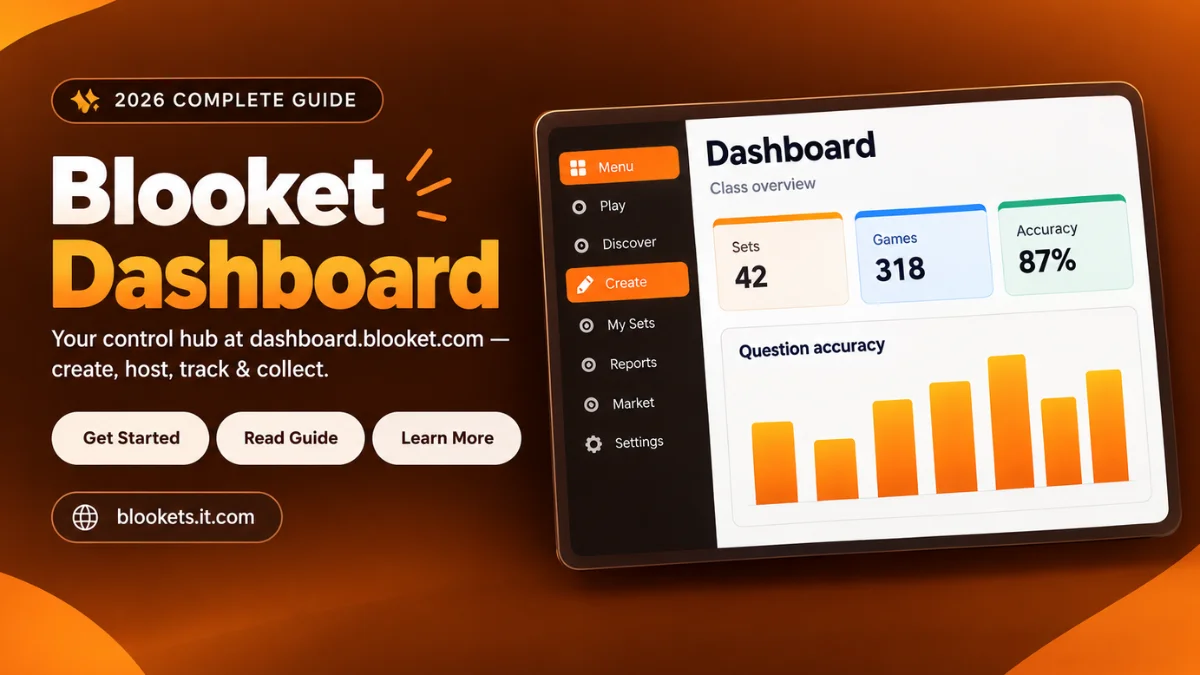
The Blooket Dashboard is the account area where users can access and manage different parts of their Blooket experience. Depending on the account type and available features, this can include question sets, solo activities, game history, reports and other account-related tools.
If you are searching for the dashboard itself, Blooket provides it through its official platform at dashboard.blooket.com. Account access should always be handled through Blooket’s own website rather than through an independent guide.
This website, blookets.it.com, is an independent fan-made informational and educational guide. It is not the official Blooket website and does not provide Blooket account or login services. Never enter your Blooket password, verification code or other private credentials on this website.
Quick Answer: The Blooket Dashboard is the account-focused area of Blooket where users can access features such as question sets, solo activities, game history and reports. Teachers can use it to manage learning activities and review hosted-game results, while students can access account features such as their own sets and supported solo activities.
If you need to access the dashboard, use Blooket’s official platform directly. If you only need to join a live game, you normally need Blooket’s Play page instead.
What Is the Blooket Dashboard?
The dashboard is the account-management side of Blooket. It is different from the page used simply to enter a game code and participate in a live session.
For teachers, the dashboard can connect several parts of the Blooket workflow. A teacher may work with a question set, use it for a game or assignment, and later return to the dashboard to review available history and reports.
Students with accounts can also use dashboard-related features. Blooket’s documentation describes Student Dashboard and Teacher Dashboard workflows for accessing certain solo activities and question sets.
A simple way to understand the platform is:
- Dashboard → manage account and content
- Play → participate in games
- Question Set → provides the questions used by activities
These parts work together, but they have different purposes.
What Can You Do From the Blooket Dashboard?
The exact dashboard layout can change as Blooket updates its platform. However, several account-related features are documented by Blooket.
| Feature | What It Helps You Do | Typical User |
|---|---|---|
| My Sets | Access question sets connected to your account | Students and teachers |
| Discover | Find available question sets | Students and teachers |
| Solo | Start supported individual activities | Students and teachers |
| History | Review previously hosted games | Teachers/hosts |
| Reports | Examine available game results | Teachers/hosts |
| Account settings | Manage account-related options | Account holders |
| Homework | Create or manage assigned activities | Teachers |
Not every account will necessarily show identical options. Available features can depend on account type and the current Blooket platform.
How to Access the Blooket Dashboard
If you already have a Blooket account, accessing the dashboard starts with signing into the official Blooket account system.
Step 1: Open Blooket’s Official Login Page
Go to Blooket’s official login page rather than searching for a third-party dashboard login form.
The current login system is hosted by Blooket and provides account sign-in options.
Step 2: Sign In to Your Account
Use the login method associated with your Blooket account.
Do not enter your Blooket credentials on blookets.it.com or another independent website.
If you need help with the account-access process, see our Blooket Login guide.
Step 3: Open the Dashboard
After signing in, access the dashboard through Blooket’s account interface.
The dashboard is intended for account-related activities, so you should not expect it to work exactly like the live-game joining page.
Step 4: Choose the Feature You Need
Once inside the dashboard, select the relevant area. For example:
- My Sets for question sets
- History for previously hosted games
- Reports for available game results
- Solo for supported individual activities
- Account settings for account-related changes
The interface may look different from older screenshots because Blooket can update its navigation and features.
Blooket Dashboard for Teachers
For teachers, the dashboard can act as a central workspace for preparing and reviewing Blooket activities.
A typical workflow might begin with a question set. The teacher can then select an appropriate game or assignment, provide students with the information they need to participate, and later return to the dashboard to examine available results.
Blooket’s documentation includes dashboard-related tools for hosting games, reviewing reports and assigning homework.
A Typical Teacher Workflow
- Sign into the Blooket account.
- Find an existing question set or create one.
- Review the questions and choose an appropriate activity.
- Start a live game or assign supported homework.
- Give students the required joining information.
- Complete the activity.
- Return to the dashboard.
- Open History or the relevant report.
- Review the available results.
If you want to understand the hosting side in more detail, see our Blooket Host guide.
Blooket Dashboard for Students
Students can also use account-based Blooket features, although they do not need the dashboard for every type of gameplay.
Blooket’s documentation explains that students can access question sets through areas such as My Sets and start supported solo games from their dashboard workflow.
A student with an account may use these features to:
- Access personal question sets
- Find available learning activities
- Start supported solo games
- Manage account-related information
However, joining a teacher’s live game is a different process. If your teacher gives you a game ID or code, you generally use the appropriate Blooket Play page rather than the dashboard.
Our Blooket Join guide explains the joining process in more detail.
Blooket Dashboard vs Blooket Play
One of the easiest ways to understand the dashboard is to compare it with Blooket Play.
The Blooket Dashboard is focused on the account and its available features. The Blooket Play area is focused on participating in gameplay.
| Task | Relevant Area | Purpose |
|---|---|---|
| Sign into your account | Login | Authenticate your account |
| Manage account features | Dashboard | Access account tools |
| Find your question sets | My Sets | View saved sets |
| Find public sets | Discover | Explore available sets |
| Review hosted games | History | Find previous sessions |
| Examine game results | Reports | Review available performance data |
| Join a live game | Play | Enter a Game ID and participate |
This distinction is particularly useful for students. If someone searches for “Blooket Dashboard” when they actually need to enter a game code, they may be looking in the wrong place.
For game-code information, see our Blooket Code guide.
Using My Sets
My Sets is an important part of the account experience because question sets provide the content used by Blooket activities.
Blooket’s documentation explains that users can access question sets through My Sets and use them for supported activities, including solo gameplay.
Teachers can use their own sets when preparing classroom activities, while students may use saved sets for individual practice.
When working with multiple sets, clear titles can make the dashboard easier to navigate. It is also useful to check that you are signed into the correct account if a set appears to be missing.
Keeping Sets Organised
If you regularly create or save question sets, consider:
- Using descriptive titles
- Checking whether a set is public or private
- Reviewing the questions before starting an activity
- Keeping similar learning material together
- Using available organisation features when supported by your account
Blooket also documents options for changing a question set’s public or private status.
Starting Solo Activities
The dashboard can also connect users with solo learning activities.
Blooket’s current documentation explains that users can find a question set through Discover or My Sets, select the Solo option where available, and then choose from supported solo game experiences.
This gives students another way to practise without joining a teacher-hosted live session.
The exact solo options can change as Blooket updates its collection of activities. For example, Blooket currently documents Study as a self-paced review experience that can be accessed through dashboard workflows.
The important distinction is that the dashboard helps you reach the activity; the selected activity is where the actual gameplay or practice takes place.
Understanding Blooket History
For teachers, History is an important dashboard feature because it provides access to previously hosted games.
Blooket’s current reporting documentation says teachers can open the Dashboard and select History to review hosted games. The History area can include information such as the game mode, question-set title, number of players and date played.
Blooket also documents filtering History by date range and sorting records by date. Selected reports can be deleted when needed.
This makes History useful when a teacher wants to return to a previous session without having to remember every detail of the game.
How Blooket Reports Work
Reports provide more detailed information about completed games.
Depending on the available report features, Blooket documentation identifies information such as:
- Game mode
- Question set
- Date and time
- Number of participants
- Correct answers
- Incorrect answers
- Accuracy
- Leaderboard information
- Question-level information for eligible features
Blooket also documents additional reporting capabilities for Plus users, including more detailed question-level and student information and spreadsheet downloads.
| Report Area | What It Can Show |
|---|---|
| Game information | Details about the completed session |
| Question set | Content used in the activity |
| Accuracy | Overall performance information |
| Participants | Number of players |
| Leaderboard | Available player results |
| Question breakdown | More detailed question information where available |
| Student report | Individual information where available |
| Spreadsheet export | Available export functionality for eligible users |
Not every report will necessarily contain every field. Blooket notes that older games may not have all of the newer reporting information.
How Homework Fits Into the Dashboard
Blooket also provides homework functionality for teachers.
Blooket’s documentation explains that teachers can assign homework from a set preview page or from My Sets when working with a set they own. Assignment settings can include a due date and other available options.
The basic workflow is:
Question Set → Homework Assignment → Student Activity → Available Results
Homework is different from a live game because students can complete an assigned activity without everyone participating simultaneously.
Exact homework capabilities and limits can depend on the account plan and current Blooket features, so teachers should check Blooket’s current documentation when a specific limit matters.
Blooket Dashboard and Account Settings
The dashboard is also connected to broader account management.
Blooket’s Help Center currently provides documentation covering account settings such as changing usernames, changing email addresses, password-related actions, switching account types and deleting an account.
These settings should always be handled through Blooket’s own account system.
If you have forgotten a password, use the official recovery process. Do not send your password to a guide website or attempt to recover an account through an unofficial service.
Blooket also documents switching between student and teacher account types through its account settings.
Is the Blooket Dashboard Free?
Blooket offers free account access alongside paid features.
Blooket’s current documentation states that essential Blooket features are available for free and describes additional functionality available through Blooket Plus and other plans.
The exact features, limits and plan details can change. Therefore, if you are deciding whether a particular dashboard feature requires a paid plan, check Blooket’s current pricing or Help Center information rather than relying on an old article.
Blooket Dashboard Troubleshooting
If your dashboard is not behaving as expected, the cause may be related to your account, browser, connection or the Blooket platform itself.
| Problem | Possible Reason | What to Try |
|---|---|---|
| Dashboard does not load | Browser or connection problem | Refresh the page and check your connection |
| Login fails | Account or authentication issue | Use Blooket’s official login page |
| Dashboard looks different | Interface update | Follow the current navigation |
| A question set is missing | Wrong account or set location | Check My Sets and confirm the account |
| History is difficult to find | Navigation has changed | Check the current dashboard navigation |
| Report has limited information | Game age or feature availability | Review the information available for that report |
| You expected a game screen | Dashboard and Play serve different purposes | Use Blooket Play for game participation |
| Game code does not work | Code/session issue | Ask the host for the current game information |
If the Dashboard Will Not Load
Try the simple checks first:
- Refresh the page.
- Confirm your internet connection.
- Make sure you are using a supported, up-to-date browser.
- Sign out and sign back in if appropriate.
- Try accessing Blooket again later if the platform appears to be experiencing a temporary issue.
- Avoid installing unknown browser extensions or scripts that claim to “fix” the dashboard.
If You Cannot Log In
Start from Blooket’s official login system.
Check that you are using the correct account information and the appropriate login method. If you have forgotten your password, use Blooket’s official account-recovery options.
Our Blooket Login guide provides additional general information about the login process.
If You Are Looking for a Game Code
A game code is not the same as dashboard access.
If a teacher has given you a code to join a live game, use Blooket’s official Play destination. The host should provide the information needed to enter the session.
For a detailed explanation of how codes work, visit our Blooket Code guide.
Security Tips for Blooket Accounts
Searching for login and dashboard information can sometimes lead users to unofficial pages that imitate familiar services.
Keep these basic security rules in mind:
- Check the domain before entering account information.
- Use Blooket’s official login page for passwords.
- Never give your password to an independent guide.
- Never share private verification codes.
- Avoid suspicious extensions promising free Tokens, Blooks or account upgrades.
- Do not install unknown scripts that claim to unlock dashboard features.
- Be cautious with websites that imitate the appearance of Blooket.
Blooket Dashboard vs Blooket Login
The terms Blooket Login and Blooket Dashboard are closely connected, but they refer to different things.
Login is the process used to access your account. Dashboard is the account area you can use after accessing the account.
A simplified workflow is:
Login → Account → Dashboard → Sets / Activities / History / Reports
If you are specifically trying to sign into Blooket, our Blooket Login guide is more relevant than this dashboard guide.
Blooket Dashboard vs Blooket Host
A Blooket host uses the platform to start an activity for other players. The dashboard, meanwhile, provides broader account and management functionality.
A typical hosting workflow can involve:
- Selecting a question set.
- Choosing a game mode.
- Starting the game.
- Giving players the joining information.
- Running the session.
- Reviewing available results afterwards.
The dashboard can therefore be part of the overall hosting workflow without being the actual game screen.
For more information, visit our Blooket Host guide.
Does Every Blooket Player Need an Account?
No. Blooket’s account requirements can vary depending on the activity.
Blooket’s own sign-up documentation explains that students do not need an account to participate in live games or complete homework, while an account provides access to additional features.
This distinction is important when someone searches for the dashboard.
If you are simply joining a teacher’s live game, you may not need to use an account dashboard at all. If you want to save and manage your own content or access account-based features, an account becomes more useful.
Practical Tips for Using the Dashboard
- Use the correct Blooket page. Login, dashboard and game joining are separate parts of the platform.
- Keep question sets organised. Clear titles make it easier to locate the right material.
- Check History after hosted games. Teachers can use the History area to return to previous hosted sessions.
- Do not depend on old screenshots. The interface can change when Blooket introduces new features or updates existing ones.
- Keep your credentials private. Your password should only be entered into Blooket’s official account system.
- Choose the right guide for the task. Use the Blooket Join guide for joining, the Blooket Code guide for game codes and the Blooket Host guide for hosting.
Blooket Dashboard at a Glance
| You Want To… | Relevant Area |
|---|---|
| Sign into your account | Blooket Login |
| Manage account features | Blooket Dashboard |
| Find your question sets | My Sets |
| Explore available sets | Discover |
| Start supported solo activities | Solo |
| Review hosted games | History |
| Examine game results | Reports |
| Join a live game | Blooket Play |
| Understand game codes | Blooket Code |
| Learn about hosting | Blooket Host |
Once these distinctions are clear, most Blooket navigation questions become much easier to solve.
Frequently Asked Questions
What is the Blooket Dashboard?
The Blooket Dashboard is the account area used to access features such as question sets, History, reports and other account-related tools.
How do I access the Blooket Dashboard?
Sign into your Blooket account through the official Blooket login system and then access the dashboard from the account interface.
What is the official Blooket Dashboard address?
Blooket provides its dashboard at dashboard.blooket.com.
Is the Blooket Dashboard the same as Blooket Play?
No. The dashboard focuses on account features, while Blooket Play is used for participating in game sessions.
Can students use the Blooket Dashboard?
Yes. Blooket documents Student Dashboard workflows for accessing question sets and starting supported solo activities.
Can teachers view previous games from the dashboard?
Yes. Blooket’s current documentation explains that teachers can use History to review games they have hosted and access available reports.
Why does my Blooket Dashboard look different from an older guide?
Blooket can update its interface and features, so older screenshots may not match the current dashboard.
Should I enter my Blooket password on blookets.it.com?
No. This website is an independent guide and does not provide Blooket login services. Use Blooket’s official account pages for credentials.
Final Thoughts
The Blooket Dashboard is the account-management side of the Blooket experience. It can connect question sets, solo activities, hosted-game history, reports and account settings, while other Blooket pages handle tasks such as logging in or joining a live game.
Understanding that difference is the easiest way to avoid confusion. If you are trying to manage your account or review activity, the dashboard is the relevant area. If you have been given a game code, use the appropriate Blooket Play page instead.
For related information, continue with our Blooket Join guide, Blooket Login guide, Blooket Code guide or Blooket Host guide.