
Blooket Join: How to Join a Blooket Game With a Code
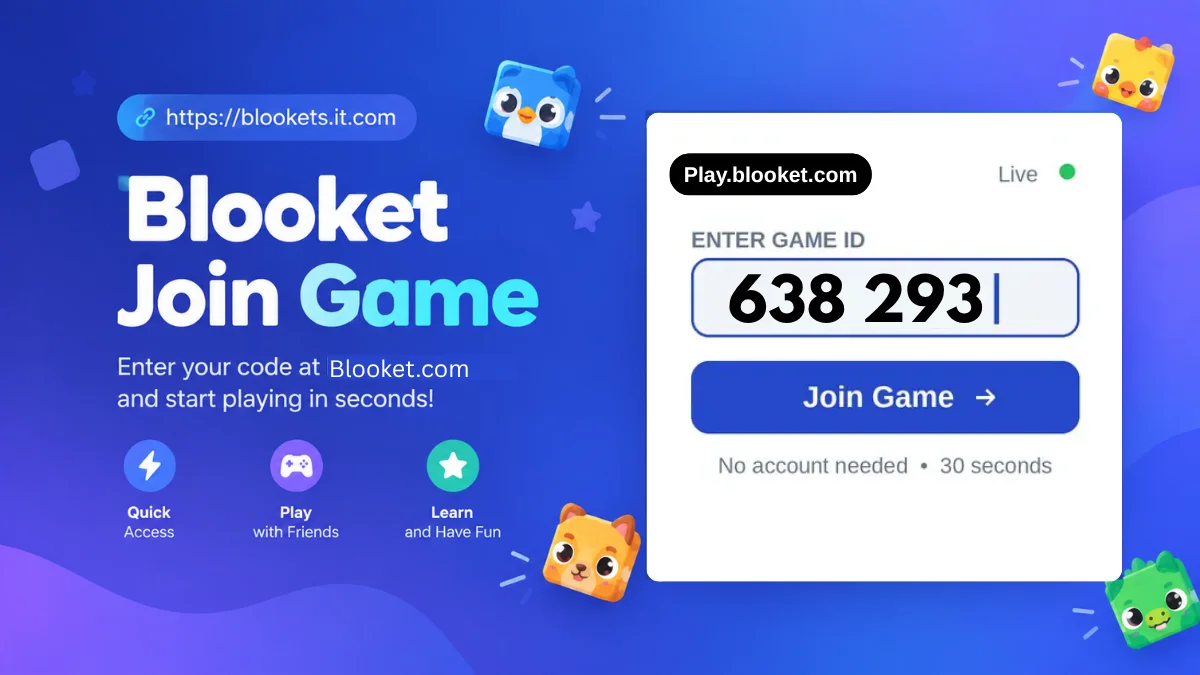
If you are searching for Blooket Join, you are most likely trying to enter a live Blooket game using a game code, QR code, or joining link provided by a teacher or host. The actual game is joined through Blooket’s official play page, not through this website.
The official Blooket joining destination is play.blooket.com. According to Blooket’s current student guidance, players can join a live game by entering the game code, scanning a QR code, or opening a Join Link shared by the host. A student account is not required simply to enter a live game.
This website, blookets.it.com, is an independent fan-made informational and educational guide. It is not the official Blooket website and does not host Blooket games, issue game codes, process Blooket logins, or collect Blooket account credentials. When you need to enter an actual game, use the official Blooket destination.
Quick Answer: To join a live Blooket game, get the game code from the teacher or host and open play.blooket.com. Enter the Game ID, follow the prompts, choose a nickname when required, and select a Blook while waiting for the host to start the game. Blooket also supports joining through a QR code or shared Join Link.
Official game joining page: play.blooket.com
Blooket Join at a Glance
| What you need | What it is used for |
|---|---|
| Game ID or code | Identifies the live Blooket session |
| Official play page | Where players enter the game code |
| QR code | Another way to open the game |
| Join Link | Direct invitation supplied by the host |
| Nickname | The name displayed during the game |
| Blook | The character selected while waiting |
| Host | Teacher or other person running the game |
The exact screen and available options can vary depending on the type of Blooket activity and the settings selected by the host.
What Does Blooket Join Mean?
Blooket Join generally refers to the process of entering an active Blooket game as a player. It is different from creating an account, hosting a game, or signing into the Blooket dashboard.
A typical classroom session works like this: a teacher selects a question set and game mode, starts the session, and receives information that students can use to enter. Students then use the official Blooket play page, scan a QR code, or follow a shared link. Blooket’s own documentation lists all three methods for joining a live game.
For a broader explanation of the platform, see our Blooket Play guide.
Official Blooket Websites and Destinations
It is useful to distinguish the official Blooket services from independent information websites.
| Official destination | Main purpose | Who may use it |
|---|---|---|
| Blooket.com | Main Blooket website | Students, teachers and visitors |
| play.blooket.com | Join a live game | Players |
| id.blooket.com | Blooket account authentication | Account holders |
| dashboard.blooket.com | Account and dashboard functions | Logged-in users |
Blooket’s help documentation specifically directs students to play.blooket.com when joining a live game.
Official vs Independent: Why It Matters
The distinction is especially important when a page involves account access.
Official Blooket pages are where users should perform Blooket account actions. This independent website is intended to explain concepts, answer common questions, and help readers understand how Blooket works.
You should never need to give this guide website your Blooket password, authentication code, or other private account information.
How to Join a Blooket Game
Joining a live session is normally straightforward when you already have the game code.
Step 1: Get the Game Code
Ask the teacher or host for the current Blooket Game ID. A code belongs to a particular session, so using an old code may not take you into the game you are looking for.
The host can also provide a QR code or direct Join Link instead. Blooket officially documents all three joining methods.
Step 2: Open the Official Blooket Play Page
Go to: https://play.blooket.com/
This is the official destination for entering a live-game Game ID.
Do not use a random website that claims it can log you into Blooket or join games on your behalf.
Join a Blooket Game With Your Game Code
Have a Blooket game code from your teacher or host? Enter the code below and continue to the official Blooket game page.
You will be redirected to play.blooket.com, the official Blooket game page.
Step 3: Enter the Game ID
Enter the code supplied by the host into the Game ID field.
If the code is incorrect, expired, or associated with a session that is no longer available, you may not be able to enter. In that situation, ask the host for the current code rather than trying random codes.
Step 4: Enter a Nickname if Requested
Depending on the host’s settings, you may be able to enter the nickname that will appear during the game.
Blooket also has a Use Random Names setting. When the host enables it, players can be assigned randomly generated names instead of choosing their own.
Good to know: Use an appropriate nickname, particularly in a classroom setting where the teacher needs to identify participants.
Step 5: Choose Your Blook
After joining, players can select a Blook while waiting for the game to begin. The available experience can depend on the player’s account status and the game/session settings.
Step 6: Wait for the Host
Once you have entered the session, remain on the joining screen until the host starts the game.
Some games allow players to join after gameplay has already started when the host has enabled the appropriate late-join setting.
Three Ways to Join Blooket
You do not always have to type a code manually.
| Joining method | How it works | When it is useful |
|---|---|---|
| Game ID | Enter the code at the official play page | Classroom or remote sessions |
| QR code | Scan the code using a compatible device | Projected classroom screens |
| Join Link | Open a link shared by the host | Online classes and messages |
Blooket’s official joining guide identifies the Game ID, QR code, and Join Link as ways students can enter a live game.
Joining With a QR Code
If your teacher displays a Blooket QR code, open your device’s camera or QR-scanning function and scan it.
The purpose of the QR code is simply to make the joining process faster. It does not mean you need to enter your account password into a separate QR-code website.
Joining With a Link
A teacher can share a direct Join Link with students. This can be particularly convenient for virtual classes because students can open the link instead of manually typing the game code.
Do You Need a Blooket Account to Join?
No. Blooket’s current help documentation says students do not need an account to join a live game. They can use the Game ID, QR code, or shared link without logging in.
An account can provide additional functionality. Blooket says students with accounts can unlock Blooks, track statistics, and play solo games.
| Situation | Account required? |
|---|---|
| Joining a live game | No |
| Entering with a Game ID | No |
| Joining through a QR code | No |
| Joining through a Join Link | No |
| Using account-specific features | Yes |
| Accessing an account dashboard | Yes |
This is one reason you should not assume that a page asking for Blooket credentials is necessary just because you are trying to join a classroom game.
For readers who specifically need account information, see our Blooket Login guide.
What Is a Blooket Game Code?
A Blooket game code, also called a Game ID in Blooket’s documentation, identifies the live session that a player wants to enter.
The code is normally supplied by the host after the game has been prepared. It is not the same thing as a username or password.
If you are trying to understand how these codes are created, shared, and why an old one may stop working, our Blooket Code guide provides a more focused explanation.
Who Creates the Blooket Join Code?
The host creates the live session. In a typical classroom scenario, this is the teacher.
Blooket’s hosting documentation explains that after selecting a question set and game mode, the host starts the game and receives a Game ID, QR code, and Join Link that can be shared with students.
The relationship is therefore simple: Teacher/host → creates session → shares joining information → students join.
Students do not normally generate the code themselves when entering someone else’s live classroom game.
If you are a teacher looking for the hosting process, see our Blooket Host guide.
What Happens After You Join?
Joining the game is only the first stage.
After entering the session, a player may be asked to provide or accept a nickname and select a Blook. The player then waits for the host to begin the game.
The actual gameplay depends on the selected game mode. Blooket has a variety of game formats, so the questions may be combined with different game mechanics.
That means Blooket Join does not refer to one particular game. It is the entry process used before participating in an available live session.
Blooket Join vs Blooket Play
The two terms are closely connected, but they are not exactly the same.
| Term | Meaning |
|---|---|
| Blooket Join | The process of entering an existing session |
| Blooket Play | The broader experience of playing Blooket games |
| Blooket Code | The Game ID used to identify a session |
| Blooket Host | The person who creates and runs the session |
| Blooket Login | Signing into a Blooket account |
If someone searches for “Blooket play,” they may be looking for the actual game-entry page or information about playing the platform. Our Blooket Play guide covers that related topic separately.
What Teachers Need to Know
For teachers, the joining process begins on the hosting side rather than the student side.
Blooket’s official teacher documentation describes a workflow in which a teacher chooses a question set, selects a game mode, configures settings, and starts the session. The resulting Game ID, QR code, and Join Link can then be shared with students.
A Simple Classroom Workflow
- Select or create a question set.
- Choose a game mode.
- Configure the available game settings.
- Start the game.
- Share the Game ID, QR code, or Join Link.
- Allow students time to enter.
- Start the session when the class is ready.
The exact settings available can vary by game mode.
Teachers who want more information about this side of the platform can use our Blooket Host guide.
What If the Blooket Code Does Not Work?
A failed join attempt does not necessarily mean there is something wrong with your device.
The session may have ended, the code may be incorrect, or the host may have created a different session. Blooket’s own troubleshooting documentation also notes that browser extensions, network restrictions, and blocked services can interfere with joining or hosting.
| Problem | Possible reason | What to try |
|---|---|---|
| Code is rejected | Incorrect or outdated code | Ask the host for the current Game ID |
| Game cannot be found | Session may no longer be active | Confirm with the host |
| Page does not load | Browser or network issue | Refresh and try again |
| Join process behaves strangely | Extension may interfere | Temporarily check browser extensions |
| School network blocks access | Network restrictions | Ask the school/administrator about access |
| You joined but cannot start | Host controls the session | Wait for the host |
Blooket specifically advises checking browser extensions such as ad blockers when users cannot join, log in, or host, and says network restrictions can also affect parts of the service.
Blooket Join Troubleshooting Checklist
Before assuming the service is unavailable, check these basics:
- Confirm that you entered the current Game ID.
- Make sure you are using the official Blooket play page.
- Ask the host whether the game is still active.
- Check your internet connection.
- Refresh the page if it appears stuck.
- Try a supported browser if the current one is behaving unexpectedly.
- Check whether browser extensions are interfering.
- If you are on a school network, consider whether the network administrator has restricted access.
Do not install an unknown extension or script simply because a website claims it will “unlock” Blooket joining.
Can You Join Blooket Without Logging In?
Yes. For live games, an account is not required according to Blooket’s current student guidance. Players can enter with the Game ID, QR code, or Join Link.
This makes live classroom participation different from account-based activities. If you are only trying to enter a teacher’s game, you generally do not need to create an account first.
If a website tells you that you must give it your Blooket username and password just to enter a live game, stop and verify that you are on an official Blooket page.
Blooket Join for Homework
Live games and homework assignments are not identical.
Blooket’s current homework documentation says teachers can share homework using a QR code or direct link. Students do not need an account to complete the homework, although logging in can provide account-related benefits such as XP, tokens, and progress tracking.
| Activity | Typical joining method | Account required? |
|---|---|---|
| Live classroom game | Game ID, QR code, or Join Link | No |
| Blooket homework | QR code or homework link | No |
| Account-based features | Blooket account | Yes |
Homework can also present different game-mode choices from a standard live session, so a homework link should not be confused with a normal live Game ID.
Security: Use the Right Blooket Page
Searching for a popular game platform can produce many third-party pages. That makes it important to check the domain before entering information.
Safe habits include:
- Check that account actions are taking place on an official Blooket domain.
- Use play.blooket.com for live-game joining.
- Never give your Blooket password to an informational website.
- Never share account verification codes with another person.
- Avoid suspicious browser extensions or scripts promising cheats or unlimited rewards.
- Be cautious with pages that imitate Blooket’s branding.
- If you are unsure, return to the official Blooket website and navigate from there.
This guide website does not need your Blooket login credentials. Its purpose is to explain the joining process and related Blooket topics.
What About Blooket Hacks and Bots?
Searches for Blooket sometimes include terms such as “Blooket hacks,” “Blooket bot,” or “Blooket cheats.” These terms generally refer to attempts to manipulate gameplay, automate participation, gain rewards unfairly, or interfere with normal game activity.
Such tools can create security and account risks, especially when they ask users to install unknown scripts, browser extensions, or provide login information.
Our Blooket Hacks guide discusses the topic from an informational and safety perspective rather than providing cheating instructions.
Similarly, our Blooket Bot guide can explain what people mean by the term and the risks associated with third-party automation.
Can You Join a Blooket Game Late?
Sometimes.
Blooket’s official joining documentation states that students can join a game after it has started when the host has enabled the Allow Late Join setting.
If late joining is disabled, a player who arrives after the game begins may need to wait for another session or ask the teacher what to do.
This is controlled by the host, so a student cannot necessarily change the setting from the joining screen.
Why a Game Code May Stop Working
A Game ID is associated with a particular session. Therefore, an old code should not be assumed to remain usable indefinitely.
If a code suddenly stops working, the most practical first step is to ask the host whether the session has ended or whether a new game has been started.
Avoid searching random websites for replacement codes. The correct code should come directly from the teacher or host.
A Simple Example
Imagine a teacher is preparing a vocabulary review.
The teacher selects a question set, chooses a game mode, starts the session, and shares the Game ID with the class. Students open the official Blooket play page and enter the code.
After joining, students provide their names if the host permits custom names, select their Blooks, and wait. The teacher then starts the game.
Nothing in that process requires a student to give this independent guide website a password or account verification code.
Blooket Join Terms Explained
| Term | Simple explanation |
|---|---|
| Blooket Join | Entering an existing Blooket session |
| Game ID | Code identifying a live game |
| Join Link | Direct link supplied by the host |
| QR Code | Scannable method for opening the session |
| Nickname | Player name displayed during gameplay |
| Blook | Character used by a player |
| Host | Person who creates and controls the game |
| Question Set | Collection of questions used in a Blooket activity |
| Game Mode | The gameplay format selected for the session |
| Homework | Blooket assignment students can complete through a shared link or QR code |
Understanding these terms makes it easier to follow teacher instructions and diagnose basic joining problems.
Blooket Join: The Short Version
If you only need the essential steps, remember this:
Get the code → open the official Blooket play page → enter the Game ID → provide a nickname if requested → choose a Blook → wait for the host.
If your teacher gives you a QR code or Join Link instead, you can use that method instead of manually entering the Game ID. Blooket officially supports all three methods.
For more related information, you can explore our Blooket Code guide, Blooket Login guide, or Blooket Dashboard guide.
Frequently Asked Questions
Can I join Blooket without an account?
Yes. Blooket says students can join live games without an account by using a Game ID, QR code, or Join Link.
What is the official Blooket join website?
The official live-game joining page is play.blooket.com.
Where do I get a Blooket game code?
The teacher or host normally provides the Game ID after creating and starting the game.
Can I join Blooket with a QR code?
Yes. Blooket officially supports QR codes as one of the methods for joining live games.
Why is my Blooket code not working?
The session may have ended, the code may be incorrect, or a browser or network issue may be interfering with the connection.
Do I need to log in before joining a Blooket game?
No. A student account is not required for joining a live game, although an account provides additional features.
Can I join a Blooket game after it has started?
You may be able to if the host has enabled the Allow Late Join setting.
Is blookets.it.com the official Blooket website?
No. blookets.it.com is an independent fan-made informational guide. Official Blooket account and game services should be accessed through Blooket’s own domains.
Final Takeaway
Blooket Join is primarily about entering an existing Blooket game, and the process is simpler than many searches make it seem. The host provides a Game ID, QR code, or Join Link, while the player uses Blooket’s official play destination to enter the session. An account is not required for students to join a live game.
The most important distinction is between joining a Blooket game and accessing a Blooket account. For a live game, start with the official play page and the information supplied by your teacher or host. For account-related actions, use Blooket’s official website rather than entering credentials into an independent guide.
blookets.it.com remains an independent educational resource designed to explain Blooket-related topics, including joining, codes, login, hosting, and gameplay.